


How to Avoid Fake M-PESA Payment Confirmations When Selling on sanalist
Fake M-PESA payment confirmations are one of the most common risks sellers face when selling online in Kenya. This guide helps sanalist sellers verify payments correctly, avoid fake SMS screenshots, identify suspicious buyers and protect products before handover.
How can you avoid fake M-PESA payment confirmations?
To avoid fake M-PESA payment confirmations, never rely on screenshots, forwarded messages or a buyer’s phone display. Check your own M-PESA SMS, M-PESA app, M-PESA statement or transaction history before releasing the product. If the payment is not visible in your own account, treat it as unpaid.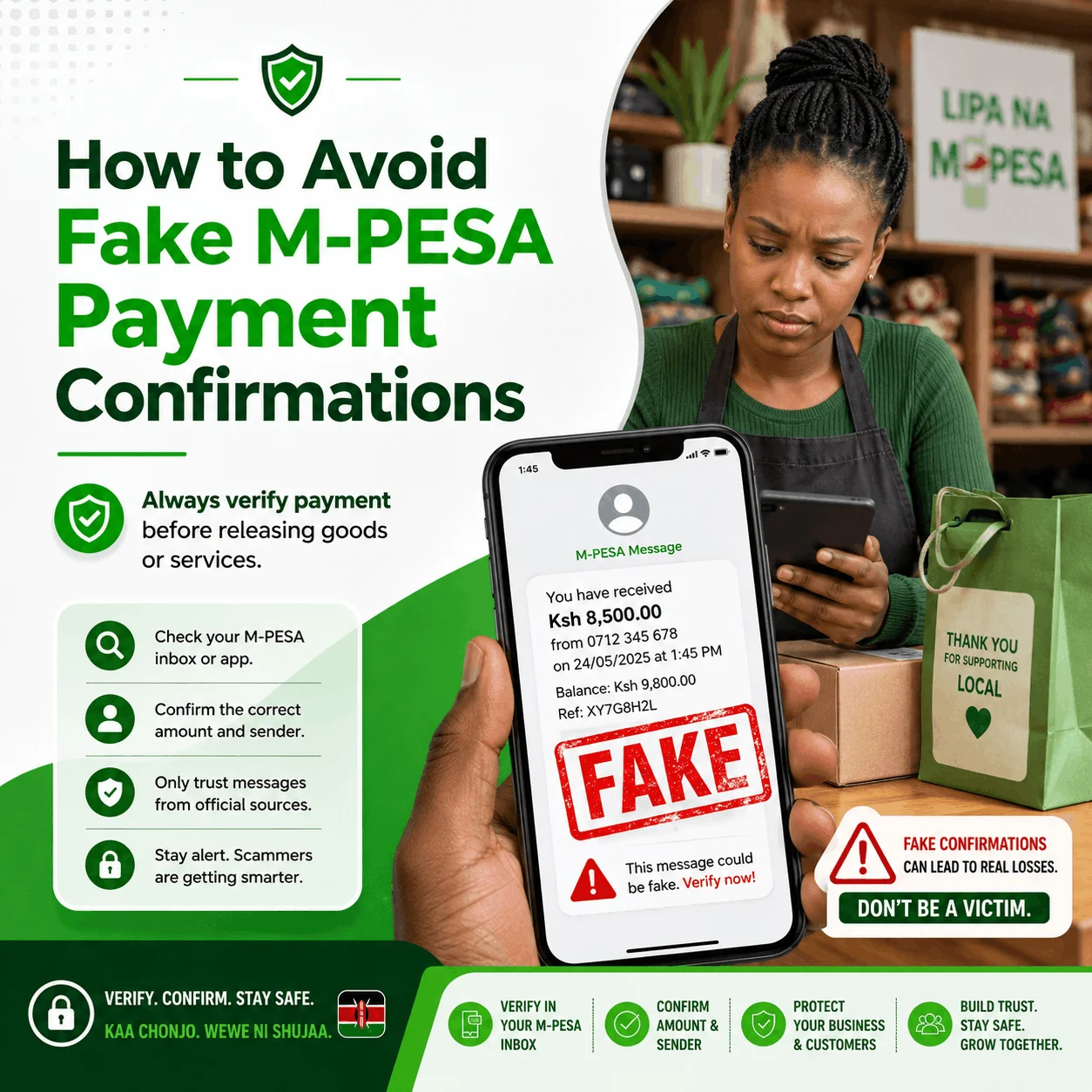
Main Risk
Fake M-PESA SMS or Screenshot
Best Protection
Confirm From Your Own Account
Seller Rule
No Confirmation, No Handover
Report Fraud To
Safaricom 333 and sanalist
Seller Safety Rule: Confirm Payment Before Releasing the Item
A buyer may show a fake confirmation message, edited screenshot or forwarded SMS to make you believe they have paid. As a seller, only release the product after you personally verify the money in your own M-PESA account.
Check Your Own Phone
Look for the official M-PESA confirmation on your own device, not the buyer’s screen.
Open M-PESA Records
Confirm through your M-PESA app, transaction history or statement before handing over goods.
Match the Details
Confirm the amount, sender name, transaction code, time and balance change.
Delay Handover if Unsure
If the money is not visible in your account, pause the transaction until payment is confirmed.
How to Verify an M-PESA Payment Before Handover
Use this process before releasing phones, laptops, furniture, vehicles, fashion items, electronics, appliances, tools or any product sold through sanalist.
Step 1: Ask the Buyer to Send Payment to the Correct Number
Confirm your correct M-PESA number or till/paybill details before the buyer pays. Do not rely on assumptions or old messages.
Step 2: Wait for Your Own Confirmation
Do not accept the buyer’s screenshot as proof. Wait until the payment appears on your own M-PESA SMS, app, statement or transaction history.
Step 3: Confirm the Amount
Check that the amount received is exactly the agreed price, including delivery or reservation fees if applicable.
Step 4: Match the Sender Name and Transaction Code
Compare the sender details, transaction reference and payment time against the buyer standing in front of you or the agreed customer name.
Step 5: Confirm Your Balance Has Changed
A real payment should reflect in your own account records. If your balance or statement does not show the payment, do not release the item.
Step 6: Release the Item Only After Verification
Hand over the product, documents, keys or delivery package only after your payment verification is complete.
Common Signs of a Fake M-PESA Confirmation
Fraudsters may edit screenshots, forward fake messages, use pressure tactics or distract sellers during product handover. Watch out for the warning signs below.
Buyer Shows Only a Screenshot
A screenshot can be edited. Do not use it as the final proof of payment.
You Receive No Official Message
If your own phone or app has no payment record, assume the payment is not confirmed.
Sender Name Does Not Match
Be cautious if the payment name does not match the buyer and the buyer cannot explain why.
Buyer Rushes You to Release the Item
Scammers often create urgency to stop sellers from checking payment records properly.
Message Comes From a Personal Number
Be suspicious of payment messages sent from unknown personal numbers instead of official M-PESA records.
Amount or Time Looks Wrong
Check for wrong amounts, old timestamps, mismatched references or suspiciously cropped screenshots.
High-Risk Selling Situations on sanalist
Fake payment confirmation scams are more common when the product is valuable, easy to resell or handed over quickly.
Phones and Laptops
These are easy to carry away and resell, so confirm payment before handing over the device.
Seller check: confirm payment, record IMEI or serial number and keep buyer contact details.
Vehicles and Motorbikes
Do not release keys, logbook documents or possession before payment is fully verified.
Seller check: verify buyer identity and agree transfer process clearly.
Furniture and Appliances
Movers may arrive before payment is confirmed. Do not load items before verification.
Seller check: confirm payment before loading or delivery dispatch.
Fashion and Beauty Products
Bulk orders can attract fake confirmations. Verify each payment before delivery.
Seller check: confirm amount, buyer name and delivery fee before dispatch.
Business Stock and Wholesale Items
Large orders create bigger loss risk if you rely on screenshots or verbal payment claims.
Seller check: use confirmed payment records and written invoice details.
Delivery and Courier Deals
Do not send the rider or courier before confirming payment in your own account.
Seller check: dispatch only after confirmed balance or statement update.
What to Do If You Suspect a Fake M-PESA Confirmation
If something feels wrong during payment confirmation, pause the transaction immediately. Protect the item first, then verify and report.
Do Not Release the Product
Keep the item, keys, documents or delivery package with you until the money is confirmed.
Check Your Account Records
Open your M-PESA account records directly and confirm if the money has arrived.
Save Evidence
Keep the buyer’s phone number, name, screenshots, listing link, messages and attempted transaction details.
Report the Attempt
Report suspicious payment messages to Safaricom and send the buyer details to sanalist support for review.
Official M-PESA Fraud Reporting Reminder
Safaricom advises users to forward fake or suspicious fraud messages to 333. If a suspicious payment confirmation, fake SMS or fraud attempt is linked to a sanalist transaction, keep the evidence and report it.
Seller Checklist Before Product Handover
Use this checklist before releasing any item sold through sanalist.
Frequently Asked Questions About Fake M-PESA Confirmations
These answers help sanalist sellers quickly understand how to verify M-PESA payments and avoid fake confirmation scams.
What is a fake M-PESA payment confirmation?
A fake M-PESA payment confirmation is a false message, edited screenshot or misleading proof used to make a seller believe money has been sent when no real payment has reached the seller’s account.
Should I accept an M-PESA screenshot as proof of payment?
No. Screenshots can be edited or reused. Always confirm payment using your own M-PESA SMS, app, statement or transaction history before releasing the product.
What should I do if payment does not reflect?
Do not release the item. Ask the buyer to wait while you verify your M-PESA account records. If no payment appears in your own records, treat the item as unpaid.
How do I report fake M-PESA messages?
Forward suspicious or fake M-PESA messages to 333 as advised by Safaricom. If the incident is linked to a sanalist transaction, also send the listing link, buyer contact and screenshots to sanalist support.
When should I release the product to the buyer?
Release the product only after the payment is confirmed in your own M-PESA account records and all transaction details match the agreed sale.
Related Seller Safety Resources
Continue learning how to sell safely, avoid scams and protect your sanalist listings.
Report a Suspicious Payment Attempt to sanalist
If a buyer sends a fake confirmation, suspicious screenshot or payment message, report it with the listing link, buyer phone number, screenshots, payment details and conversation history.
What to include in your report
Sell safely on sanalist: confirm payment before handover.
Never release a product based on screenshots, forwarded messages or buyer pressure. Verify the payment in your own M-PESA account first.